Digital Camera Troubleshooting: A Practical Guide to Common Issues and Fixes
Digital camera troubleshooting made simple. Fix power failures, blurry photos, screen glitches, card errors, and transfer issues with these practical step-by-step solutions.
Your digital camera was working fine yesterday. Today, it won't turn on, or maybe the photos are coming out blurry, or the screen's doing something weird. Before you panic (or toss it in a drawer), most digital camera troubleshooting comes down to a handful of common issues with straightforward fixes.
We've helped thousands of people find the right tech for their needs, and cameras are no exception. Whether you're using a dedicated digital camera for family photos, school projects, or creative work, this guide walks you through the most common problems and what to do about them. No jargon. No guesswork. Just practical steps you can try right now.
Why Your Digital Camera Might Not Be Working as Expected
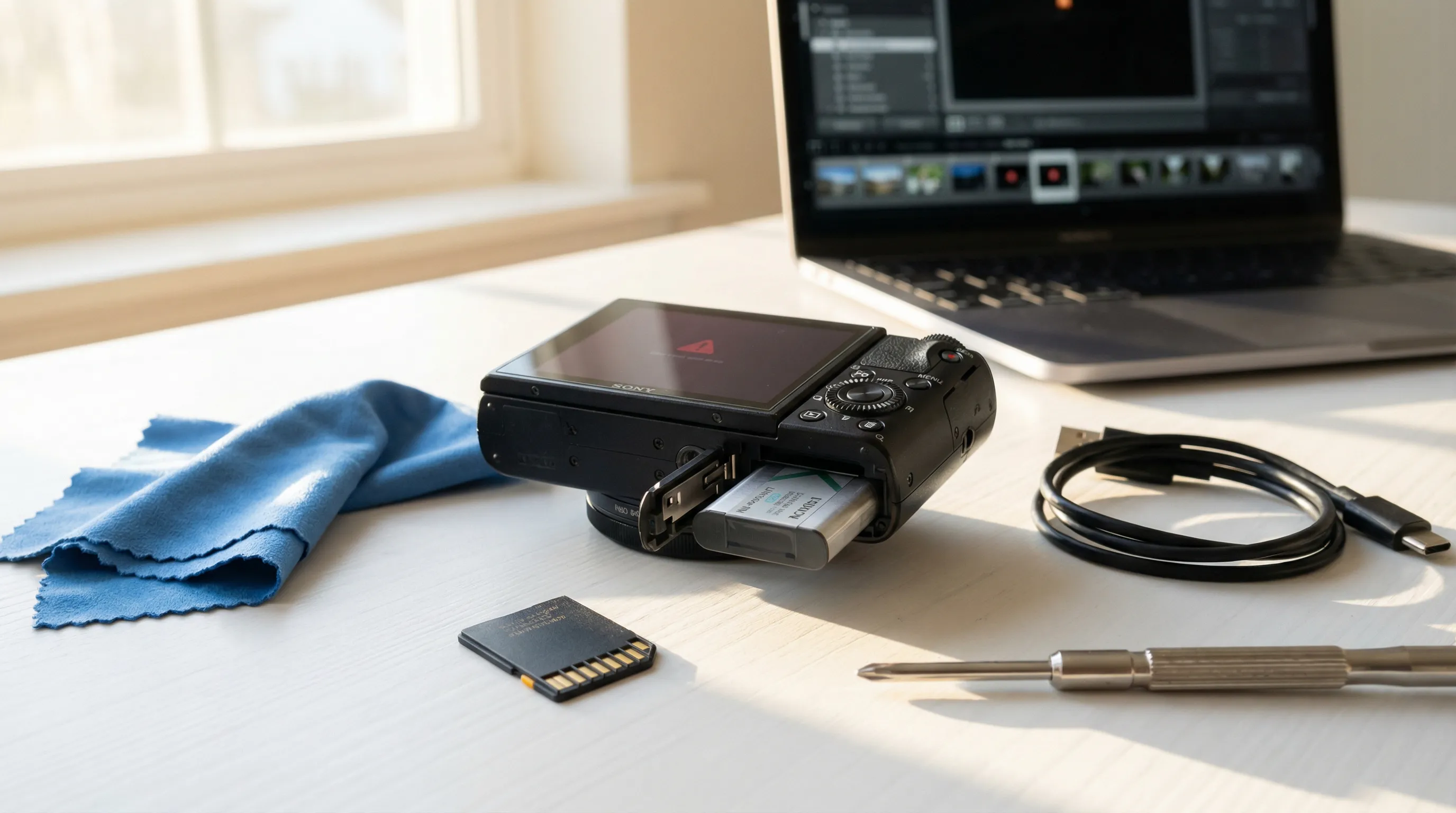
Digital cameras are more reliable than most people give them credit for. But they're still electronic devices with batteries, lenses, memory cards, and sensors, and any one of those components can act up.
The good news? Most camera problems fall into a few predictable categories:
- Power and battery failures, the camera won't turn on or dies too quickly
- Focus and image quality issues, blurry, soft, or out-of-focus shots
- Screen glitches, blank displays, flickering, or frozen screens
- Memory card errors, storage not recognized, corrupted files
- Connectivity problems, trouble transferring photos to a computer
Before assuming the worst, work through each category systematically. You'd be surprised how often the fix is something simple, a dead battery, a smudged lens, or a memory card that needs formatting.
And if you're shopping for a camera that's built to be simple and reliable from the start, it's worth considering models designed without WiFi, Bluetooth, or unnecessary extras that can introduce their own set of problems.
Power and Battery Problems
Battery-related issues are the single most common reason a digital camera stops working. The symptoms range from a camera that won't power on at all to one that dies halfway through a shoot. Let's break it down.
Camera Won't Turn On
This one's frustrating, but don't jump to conclusions. Start simple:
- Check the battery charge. Plug it in and wait. Sometimes a completely drained battery needs 15–20 minutes on the charger before the camera will respond at all.
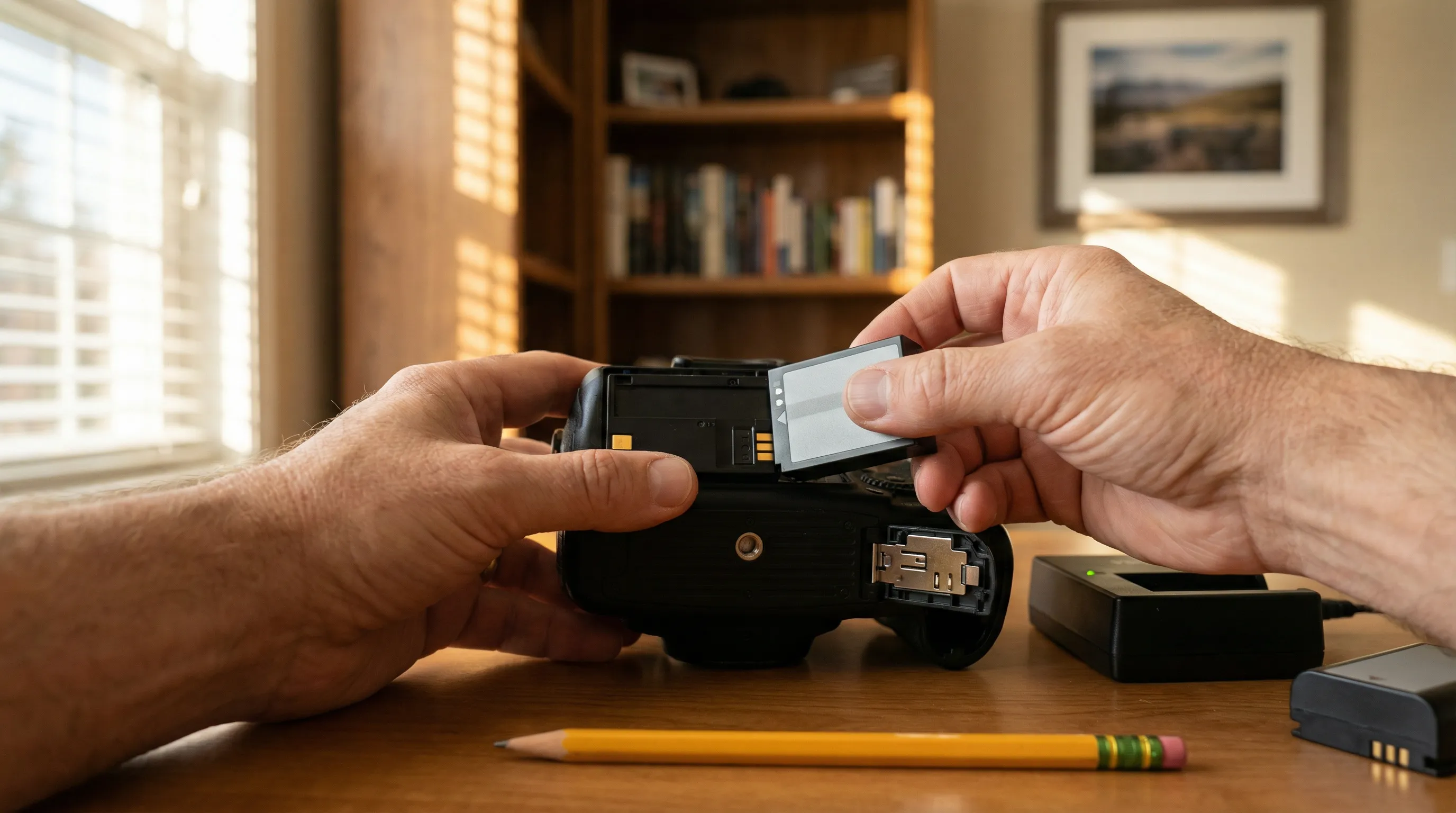
- Inspect the battery contacts. Pop the battery out and look at the metal contacts inside the compartment. If they're corroded or dirty, gently clean them with a pencil eraser. Loose springs or broken latches in the compartment can also prevent a good connection.
- Try a different battery. If you have a spare (or can borrow one), swap it in. This immediately tells you whether the problem is the battery or the camera itself.
- Verify your charger works. Chargers fail too. Try a different outlet, or test the charger with another device if possible.
- Look for a reset button. Many cameras have a small reset button, check your user manual for the exact location. A quick reset can clear electronic glitches.
- The full power cycle. Remove the battery and memory card. If your camera has a removable lens, take that off too. Wait about an hour. Reassemble everything and try again. It sounds almost too simple, but this clears residual charge from the electronics and resolves a surprising number of "dead camera" situations.
One often-overlooked cause: if you're using an electronic remote switch or cable release, unplug it. Faulty remotes are a surprisingly common reason cameras refuse to power on.
Battery Draining Too Quickly
If your camera turns on fine but the battery dies way too fast, a few things might be going on:
- Temperature extremes. Cold weather is the biggest battery killer. Lithium-ion batteries lose capacity rapidly below 40°F. If you're shooting outdoors in winter, keep a spare battery in your jacket pocket (close to your body) and swap as needed. Extreme heat can also degrade battery performance over time.
- Screen brightness. The LCD screen is the single biggest power draw on most cameras. Dim it or use the viewfinder when possible.
- Old batteries. Rechargeable batteries lose capacity after hundreds of charge cycles. If your battery is more than 2–3 years old, it might simply be worn out.
- Always carry backups. This isn't really troubleshooting, it's just good practice. A spare battery costs a fraction of a missed shot.
Blurry or Out-of-Focus Images
Blurry photos are probably the most common quality complaint, and the cause is usually one of three things: camera shake, incorrect focus, or wrong settings.
Camera shake happens when the camera moves during the exposure. It's especially noticeable in low light, where the shutter stays open longer. Solutions:
- Use a tripod or rest the camera on a stable surface. Even leaning against a wall helps.
- Increase your ISO setting to allow a faster shutter speed (though this adds some grain).
- If your camera has image stabilization, make sure it's turned on.
Focus errors are the other big culprit. Your camera's autofocus might be locking onto the wrong subject, a common issue when shooting through glass, fences, or in busy scenes. Try:
- Switching to center-point autofocus instead of multi-point, so you control exactly where the camera focuses.
- Half-pressing the shutter to lock focus on your subject before fully pressing to take the shot.
- Cleaning the lens. A fingerprint or smudge won't always show up obviously, but it softens everything.
Wrong settings can also cause soft images. Check that your mode dial hasn't been bumped to an unintended setting. A camera accidentally set to "macro" mode won't focus properly at normal distances, and vice versa.
For anyone who wants a camera focused purely on taking good photos without fiddling with complex menus, models like the Samvix UCamera S7 offer 44MP resolution with a straightforward 16x zoom, no WiFi or Bluetooth complications to troubleshoot.
Screen and Display Issues
When your camera's LCD screen goes blank, flickers, or displays strange colors, it's understandably alarming. But the cause is often less dramatic than it seems.
Moisture is the most common culprit. If you've been shooting in humid conditions, near water, or moved the camera quickly from a cold environment to a warm one (like stepping inside from a winter shoot), condensation can form on or behind the screen.
What to do:
- Turn the camera off and let it sit in a dry, room-temperature environment for several hours.
- Don't use a hair dryer or heat source, that can damage internal components.
- Placing the camera in a sealed bag with silica gel packets can speed up the drying process.
- If the screen still doesn't recover after 24 hours, moisture may have reached internal electronics. That's professional repair territory.
Other screen issues:
- Frozen display: Remove the battery for 30 seconds, reinsert, and power on. This is the camera equivalent of "turn it off and on again," and it works more often than you'd expect.
- Dim or dark screen: Check your brightness settings. Some cameras also have a power-saving mode that dims the screen automatically.
- Lines or dead pixels: Unfortunately, these usually indicate physical screen damage. If the lines appeared after a drop or impact, the screen or its connector may need replacement.
A cracked or heavily damaged screen typically means repair or replacement. For cameras with advanced touchscreens, like the Samvix UCamera X9200, a protective case can prevent these issues before they start.
Memory Card and Storage Errors
Few things are more frustrating than a "Card Error" message when you're ready to shoot. Memory card problems range from minor annoyances to genuine data loss, so it's worth handling them carefully.
"Card not recognized" or "No card inserted":
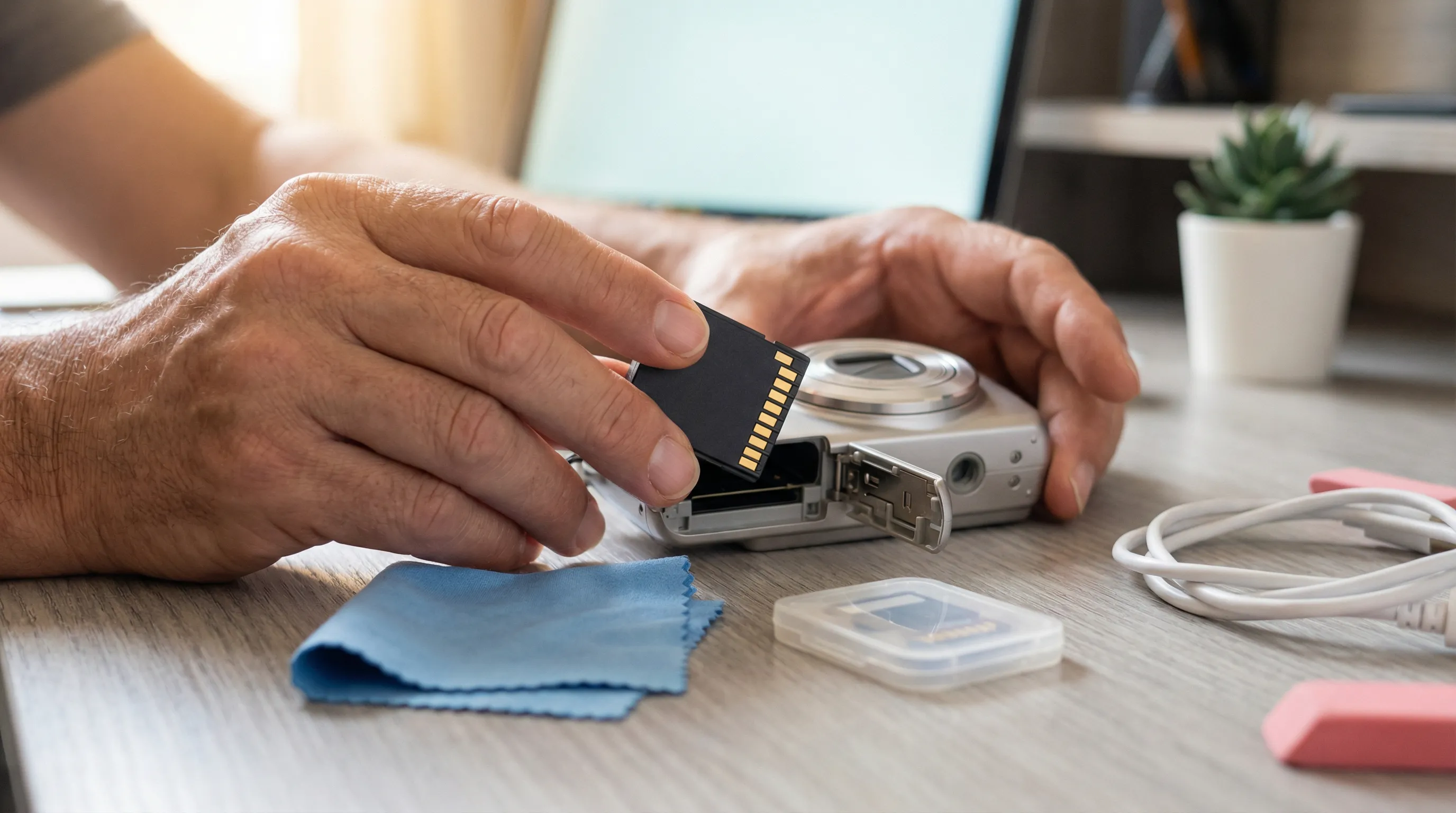
- Remove the card, blow gently into the slot to clear dust, and reinsert firmly.
- Try the card in a different device (computer, another camera) to determine if the card itself is the problem.
- Test with a different memory card in your camera. If a new card works fine, the original card may be corrupted or failing.
"Card full" when you know there's space:
- Your camera may have a file numbering limit. Some cameras can only handle a certain number of files per folder. Formatting the card in-camera (not on a computer) usually resolves this.
Corrupted files or missing photos:
- Always eject your SD card properly, pulling it out while the camera is writing data is the fastest way to corrupt files.
- Format your memory card in-camera periodically. This clears the file system and reduces the chance of errors building up over time.
- Never format without backing up your photos first.
Pro tip: Memory cards have a lifespan. If you're experiencing frequent errors with a card you've used heavily for years, it might just be worn out. They're inexpensive to replace, and a fresh card eliminates a lot of headaches.
Cameras without WiFi or Bluetooth, like those in our kids' camera collection, keep things simple, your storage issues are limited to the card itself, with no wireless transfer complications to worry about.
Connectivity and File Transfer Problems
Getting photos off your camera and onto a computer should be simple. When it isn't, here's what to check:
USB connection not working:
- Try a different USB cable. Cables wear out, especially near the connectors. This is the #1 fix for transfer problems.
- Plug into a different USB port on your computer. Front ports on desktops are sometimes underpowered.
- Restart your computer. It sounds basic, but connection drivers can get stuck.
- Make sure the camera is powered on and set to the correct transfer mode (check your camera's menu for a USB or connection setting, some cameras need to be set to "Mass Storage" or "PTP" mode).
Computer doesn't recognize the camera:
- Try removing the memory card and using a card reader instead. Card readers bypass the camera's USB interface entirely and are generally more reliable.
- On Windows, check Device Manager for any error icons next to the camera. You may need to update or reinstall the driver.
- On Mac, look in Image Capture or Finder for the connected device.
Slow transfers:
- If you're transferring hundreds of large files, use a USB 3.0 card reader for significantly faster speeds.
- Avoid transferring over USB 2.0 ports if possible, the difference is dramatic with high-resolution photo files.
Cameras without WiFi or Bluetooth rely entirely on physical connections, which is actually an advantage for digital camera troubleshooting. There's no wireless pairing to debug, no firmware handshake to fail. Plug in, transfer, done. The Samvix UCamera X8400 with its 12x optical zoom and 4K video is a good example, high-end specs with simple, reliable file transfer.
When to Seek Professional Repair vs. Replacing Your Camera
Not every problem has a DIY fix. Here's how to decide whether to repair or replace:
Seek professional repair when:
- The lens is physically damaged, stuck, grinding, or cracked. Lens mechanisms are precision components that require specialized tools.
- Internal moisture damage persists after drying. Water that reaches circuit boards can cause corrosion that worsens over time.
- You see persistent error codes that don't resolve after a full reset and battery swap.
- The camera body has visible damage from a drop or impact, even if it still "kind of" works. Internal damage can worsen.
Consider replacing when:
- Repair estimates exceed 50% of what a comparable new camera costs. At that point, you're better off starting fresh.
- The camera is more than 5–7 years old and showing multiple issues. Sensor technology and image processing have improved dramatically, a new mid-range camera may outperform your old high-end model.
- Parts are no longer available for your model.
A practical middle ground: Some issues, like a scratched lens filter or a worn battery door, are cheap fixes that extend a camera's life significantly. Don't assume everything is expensive to repair. Get a quote before deciding.
If you're replacing a camera and want something reliable without unnecessary complexity, dedicated digital cameras built without WiFi and Bluetooth tend to have fewer points of failure. Less wireless technology means fewer things that can go wrong.
Conclusion
Most digital camera troubleshooting comes down to patience and process. Check the battery first. Clean the lens. Format the card. Try a different cable. These simple steps resolve the vast majority of problems without spending a dollar.
When the fix isn't simple, knowing when to seek professional repair, and when to replace, saves you both money and frustration.
And if you're in the market for a new camera that's built to be straightforward and reliable, we carry a full range of dedicated digital cameras at KosherSignal. No WiFi complications. No Bluetooth pairing headaches. Just cameras that take great photos. Browse our complete camera collection to find the right fit, or reach out to our 24/6 live chat team, we're happy to help you pick the right one.
Frequently Asked Questions
Why won't my digital camera turn on even after charging?
Start by inspecting the battery contacts for corrosion and cleaning them with a pencil eraser. Try a different battery or charger to isolate the issue. If the camera is still unresponsive, remove the battery and memory card, wait an hour, then reassemble. A full power cycle like this resolves many digital camera troubleshooting cases.
How do I fix blurry photos on my digital camera?
Blurry images are usually caused by camera shake, incorrect focus, or wrong settings. Use a tripod in low light, switch to center-point autofocus, and clean your lens to remove smudges. Also check that the mode dial hasn't been accidentally bumped to macro or another unintended setting.
What should I do when my camera shows a memory card error?
Remove the card, blow gently into the slot to clear dust, and reinsert it firmly. Test the card in another device to see if it's the card or the camera. Formatting the memory card in-camera often resolves file system errors. Always back up photos before formatting, and replace cards that show frequent errors.
How can I stop my digital camera battery from draining so fast?
Cold weather is the biggest battery killer — lithium-ion batteries lose capacity rapidly below 40°F. Dimming the LCD screen and using the viewfinder also helps conserve power. If your battery is over 2–3 years old, it may be worn out. Always carry a spare battery for extended shoots.
Is it better to repair or replace a broken digital camera?
If repair costs exceed 50% of a comparable new camera's price, replacing is usually smarter. Cameras older than 5–7 years with multiple issues are also better replaced, since newer models offer significantly improved sensors and image processing. For simple fixes like a worn battery door, a repair can extend the camera's life affordably.
What is the best digital camera for simple, reliable use without WiFi?
Cameras without WiFi or Bluetooth have fewer points of failure, making digital camera troubleshooting simpler. The Samvix UCamera S7 offers 44MP resolution with 16x zoom starting at $139.99, while the Samvix UCamera X8400 provides 48MP with 12x optical zoom and 4K video at $189.99 — both with straightforward USB file transfer.













































.svg)